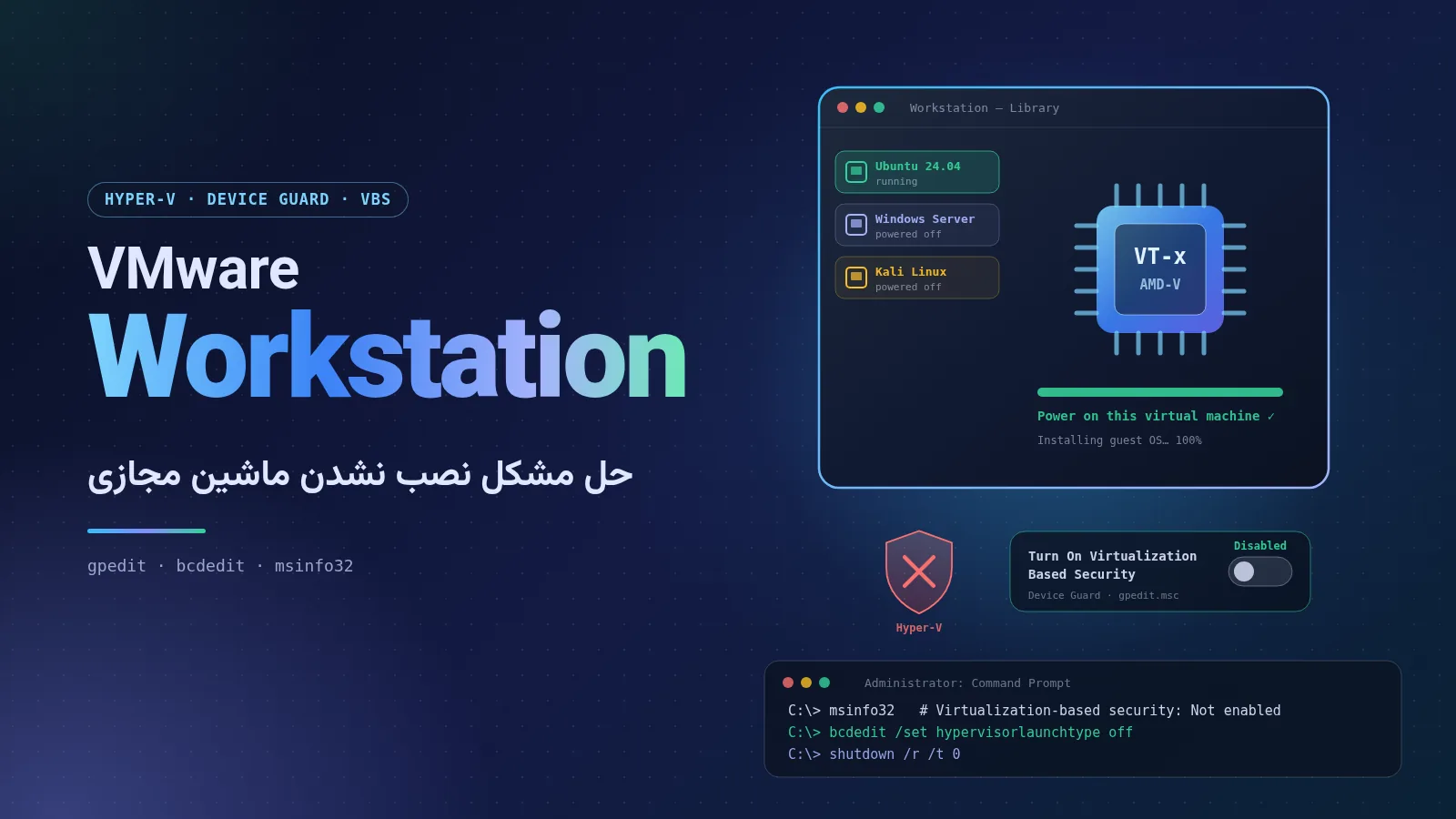
Fixing VMware Workstation Virtual Machines That Won’t Start: Hyper-V and Device Guard Incompatibility
Mahyar Tolooie ·
·
5 min read
If you see the following message when you power on or create a virtual machine in VMware Workstation and the VM refuses to start, you are not alone. The error usually appears after a Windows 10 or 11 update, after Hyper-V has been enabled, or after Windows has turned on its newer security features:
Your host does not meet minimum requirements to run VMware Workstation
with Hyper-V or Device/Credential Guard enabled.
Older versions of VMware show the same problem with a similar message, “VMware Workstation and Device/Credential Guard are not compatible”, and the fix is the same for both.
The good news is that the fix is simple and does not require reinstalling VMware or Windows. In this article we first explain the cause, then walk step by step through the main fix (disabling Virtualization Based Security via Group Policy) and a few complementary solutions.
Section 1 of 7
1. What causes the error?
For security features such as Device Guard, Credential Guard and Memory Integrity, Windows relies on Virtualization Based Security (VBS). To work, VBS loads the Hyper-V hypervisor when Windows boots — even if you never installed Hyper-V yourself.
While the Hyper-V hypervisor is running, Windows owns direct access to the processor’s virtualization features (Intel VT-x or AMD-V), and older versions of VMware Workstation (before 15.5.5) cannot run virtual machines. Newer versions of VMware also show this message if the host is older than Windows 10 version 2004.
VMware Workstation older than 15.5.5: not compatible with Hyper-V and VBS; virtual machines will not run as long as these features are on.
VMware Workstation 15.5.5 and later: can run alongside Hyper-V on Windows 10 version 2004 and later, but virtual machines are slower in this mode and some features are limited.
Section 2 of 7
2. Before you start: check your system
To confirm the cause, press Win + R, type msinfo32 and press Enter. On the System Summary page, look for these two items:
Virtualization-based security: if its value is Running, VBS is enabled and is the main cause of the problem.
A hypervisor has been detected: if you see this line, the Windows hypervisor (Hyper-V) was loaded at boot.
Also make sure processor virtualization (Intel VT-x or AMD-V / SVM) is enabled in the BIOS/UEFI settings; you can check it on the Performance tab of Task Manager, under CPU, next to “Virtualization”.
Section 3 of 7
3. The main fix: disable VBS in Group Policy
This is the method that solves the problem on most systems. The Group Policy Editor is only available in the Pro, Enterprise and Education editions of Windows (for Windows Home, see section 5).
Press Win + R, type gpedit.msc and press Enter to open the Local Group Policy Editor.
In the left pane, go to Local Computer Policy → Computer Configuration → Administrative Templates → System → Device Guard.
Double-click Turn On Virtualization Based Security.
Select Disabled and click OK.
Restart the computer once.
The full path of this setting:
Local Computer Policy
 └─ Computer Configuration
     └─ Administrative Templates
         └─ System
             └─ Device Guard
                 └─ Turn On Virtualization Based Security  =  Disabled
After the restart, open VMware Workstation; in most cases the virtual machine now powers on without errors and the guest OS installation continues.
Section 4 of 7
4. If the problem persists: turn off Hyper-V
Sometimes the Hyper-V hypervisor still runs at boot even after VBS has been disabled — for example when Hyper-V itself, Windows Sandbox or WSL2 is installed. In that case, open Command Prompt as Administrator and run:
bcdedit /set hypervisorlaunchtype off
Then restart. If you want to remove the related features completely, go to Control Panel → Programs and Features → Turn Windows features on or off and untick Hyper-V, Virtual Machine Platform, Windows Hypervisor Platform and Windows Sandbox. You can do the same with PowerShell (as Administrator):
If you later need Hyper-V, WSL2 or Docker Desktop again, re-enable the hypervisor with the following command and a restart:
bcdedit /set hypervisorlaunchtype auto
Section 5 of 7
5. Turning off Memory Integrity and the registry method (Windows Home)
On Windows 10 and 11, Memory Integrity (Hypervisor-protected Code Integrity) also keeps VBS switched on. To turn it off, open Windows Security, go to Device security → Core isolation details, switch Memory integrity off and restart.
On Windows Home, which has no Group Policy Editor, you can apply the setting from section 3 through the registry. Open Command Prompt as Administrator and run these commands (create a restore point before editing the registry):
After restarting, check again with msinfo32 that Virtualization-based security shows Not enabled.
Security note: VBS, Credential Guard and Memory Integrity are designed to protect Windows against malware. On corporate computers where these settings are enforced by domain policy, talk to your network administrator before changing anything; your changes may be reverted at the next policy sync.
Section 6 of 7
6. Alternative: update VMware Workstation
If you need Hyper-V, WSL2 or Docker Desktop and don’t want to turn VBS off, upgrade VMware Workstation to 15.5.5 or later (ideally the latest 17.x release). On Windows 10 version 2004 and later these versions use the Windows Hypervisor Platform API and can run alongside Hyper-V. For this to work, the Windows Hypervisor Platform feature must be enabled in Windows Features. Keep in mind that virtual machines run more slowly in this mode than without Hyper-V.
Reminder: since 2024 VMware Workstation Pro has been free for all users (personal and commercial), and you can download the latest version from Broadcom’s official website.
Section 7 of 7
7. Conclusion
The error “Your host does not meet minimum requirements to run VMware Workstation with Hyper-V or Device/Credential Guard enabled” means that the Windows hypervisor — because of Hyper-V or virtualization-based security features — took control of the processor before VMware could. The simplest fix is to disable Turn On Virtualization Based Security in Group Policy and restart once. If the problem persists, turn Hyper-V off with bcdedit and disable Memory Integrity; and if you do need Hyper-V, update VMware Workstation to the latest version.
A complete, practical guide to managing secrets with HashiCorp Vault: history, the move to BSL, OpenBao and IBM’s acquisition of HashiCorp, seal/unseal and Raft, tokens and policies, AppRole and Kubernetes, dynamic secrets, PKI and Transit, a Docker Compose setup with TLS, Spring Boot integration and a production checklist.
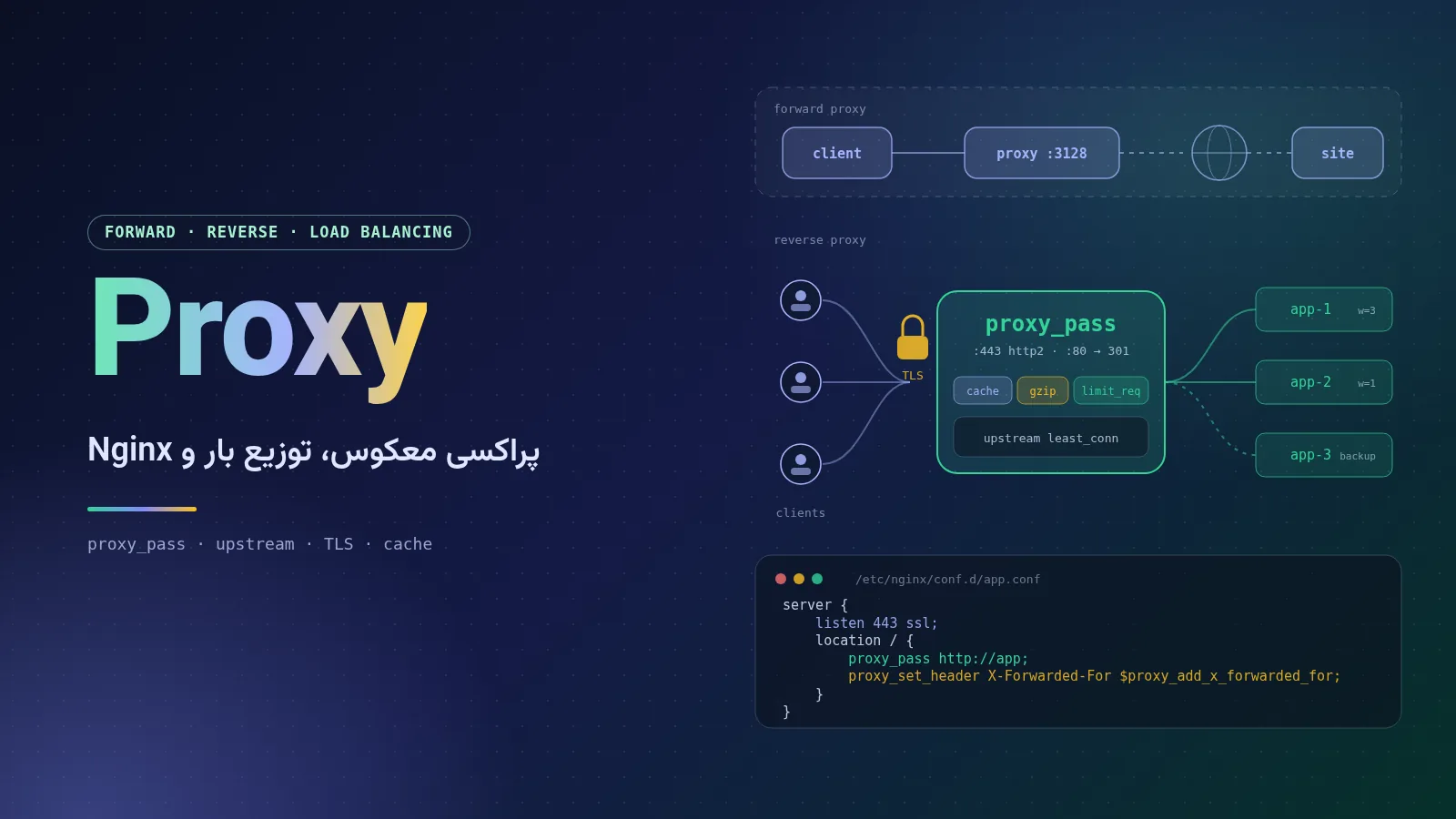
A complete, plain-language guide to proxy servers: forward, reverse and transparent proxies, HTTP and SOCKS, load-balancing algorithms, and a full Nginx tutorial covering installation, configuration structure, reverse proxying, SSL with Let's Encrypt, WebSocket, caching, rate limiting, security headers and troubleshooting 502 and 504 errors.
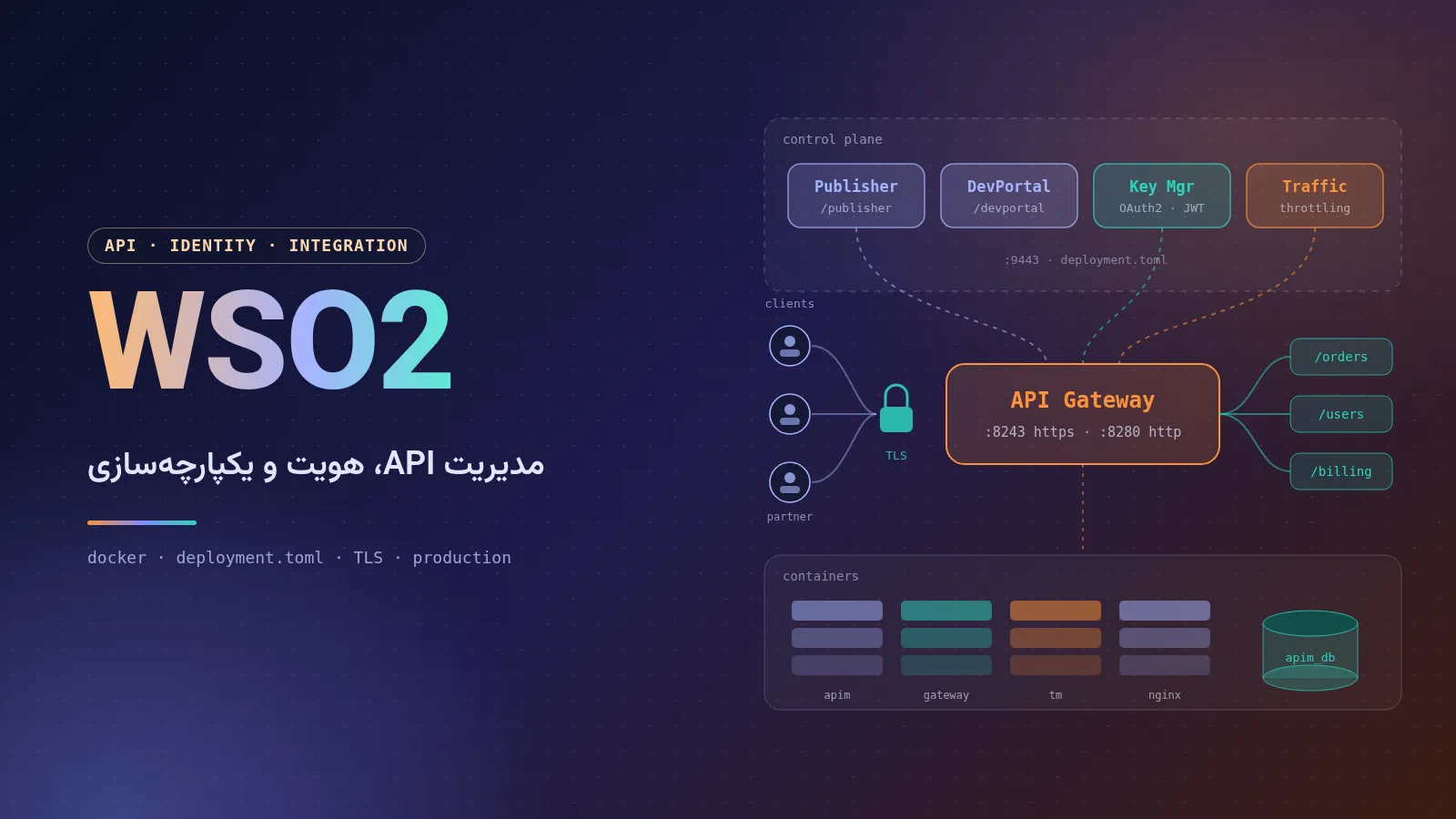
A complete, practical guide to WSO2: the company and its products, the architecture of API Manager 4.7, installation with Docker and Docker Compose, configuring deployment.toml, SSL with Let's Encrypt and Nginx, production deployment tips and a comparison with competitors.

Comments No comments yet
To leave a comment, open this page in a web browser.