Call of Duty 4: Modern Warfare — Playing over a LAN
Mahyar Tolooie ·
·
2 min read
How to play Call of Duty 4: Modern Warfare over a LAN
To play this game over a local network you need a few patches and settings, which should be applied step by step.
As always, the first step is to install a clean, unmodified copy of the game — one that does not already contain updates or special tweaks. Also make sure the game runs.
The next step is to install the patches:
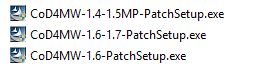
There are three patches for playing CoD 4 over a network, and they must be installed in this order:
CoD4MW-1.4-1.5MP — about 11 MB
CoD4MW-1.6 — about 290 MB
CoD4MW-1.6-1.7 — about 40 MB
There are two cases when installing these patches: if you have just installed the game, the patches detect the installation folder themselves and you only need to click NEXT. If you got a portable copy of the game from someone (the game can also run as a portable copy), you must point each patch to the folder where the game is located at the start of the installation.
Note: sometimes the CoD4MW-1.4-1.5MP patch has to be installed once more after installing all three in the order above; if you see a patch error in the game, reinstall that patch.
From now on, start the game with the iw3mp.exe icon so that the multiplayer version launches.
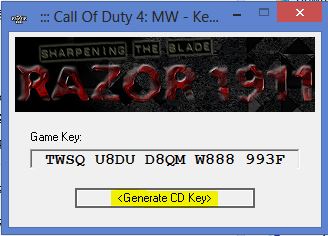
In the game, go to Options ⇒ Multiplayer Options ⇒ Enter Key Code, enter your CD key and click Verify to register it.
To start playing, click Start New Server if you want to host the game yourself, or click Join Game if you want to join a game hosted by one of your friends.
Note that on the Join Game screen the Source option must be set to Local.
After these settings, if your network is configured correctly you should see your friends’ server on the Join Game screen; double-click it to join.
If the server still does not appear, go to Multiplayer Options, and under Game Options set Console to Enabled. Now pressing the ~ key (above Tab) opens a small console where you can type commands. To connect to the server, type the following command and press Enter:
connect 192.168.1.20
This IP address is only an example: replace it with the IP address of the server, i.e. of the player who is hosting the game.
Tip: in CoD 4, console commands must be preceded by a \, which is added automatically when you press Tab after typing the command; however, I believe the connect command also works without the \, so you don’t have to press Tab. (To be clear: if the network is set up correctly the host’s name is listed automatically, so this method is rarely needed.)
Comments No comments yet
To leave a comment, open this page in a web browser.
A complete, practical guide to managing secrets with HashiCorp Vault: history, the move to BSL, OpenBao and IBM’s acquisition of HashiCorp, seal/unseal and Raft, tokens and policies, AppRole and Kubernetes, dynamic secrets, PKI and Transit, a Docker Compose setup with TLS, Spring Boot integration and a production checklist.
A complete, plain-language guide to proxy servers: forward, reverse and transparent proxies, HTTP and SOCKS, load-balancing algorithms, and a full Nginx tutorial covering installation, configuration structure, reverse proxying, SSL with Let's Encrypt, WebSocket, caching, rate limiting, security headers and troubleshooting 502 and 504 errors.
A complete, practical guide to WSO2: the company and its products, the architecture of API Manager 4.7, installation with Docker and Docker Compose, configuring deployment.toml, SSL with Let's Encrypt and Nginx, production deployment tips and a comparison with competitors.

Comments No comments yet
To leave a comment, open this page in a web browser.